
Opening the page builder in SGEN
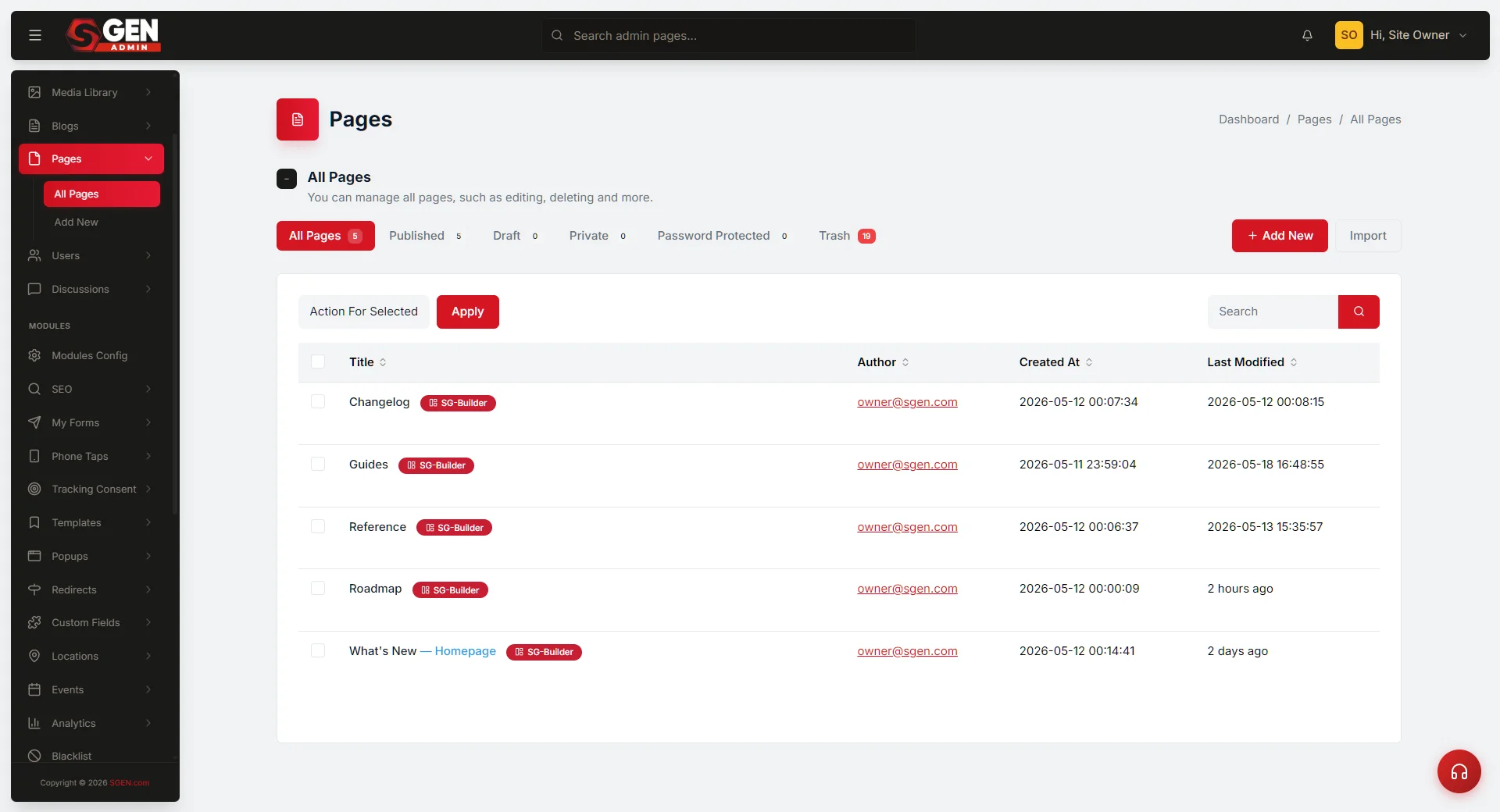
⏱ 30-second answer below · full page ≈ 8 min · skim the bold lead-ins to move faster.
In short. Click Edit with SG-Builder on any row in your Pages list. The builder opens inside the admin in 1–2 seconds. If it stays on a loading spinner past 10 seconds: click Dashboard to check your session, reload the page-edit screen, try a different page, then try a private window (rules out extensions). Four out of five stuck cases resolve at one of those steps.
On this page: When to use this · Before you start · Steps — opening the builder · What success looks like · Troubleshooting · Reference tables · FAQ
How to open SG-Builder on a page and what to do if it won't load
What is this for?
SG-Builder is the drag-and-drop visual editor for your site's pages — you open it by clicking Edit with SG-Builder on any row in the Pages list. The builder loads inside the admin screen where you can change content, rearrange sections, swap photos, and preview your design at desktop, tablet, and mobile widths.
Most of the time it opens in one to two seconds. When it doesn't — usually a timed-out session, stale local state, or a browser extension blocking scripts — this guide gives you the exact steps to get unstuck without contacting support.
Scope
Opening SG-Builder applies to every published and draft page on your site. Blog posts, products, and other content types have their own editors and do not appear in the Pages list.
| Surface | Uses SG-Builder? | Notes |
|---|---|---|
| Pages | Yes | Any page in the Pages list |
| Blog posts | No | Blog has its own text editor |
| Products (ecommerce) | No | Product editor in the Ecommerce area |
| Draft pages | Yes | Builder opens for drafts the same way as published pages |
| Homepage | Yes | Whichever page is set as homepage in Settings |
The builder opens inside an embedded frame on the page-edit screen. It requires an active admin session and a stable browser connection. Extensions that block scripts can prevent it from loading.
Good use cases
| You want to | Use the builder to |
|---|---|
| Update the hero section — headline, photo, or CTA | Edit directly on the canvas |
| Verify how a page looks at tablet or mobile width | Use the device toggle in the top toolbar |
| Copy an existing section (pricing card, team grid) | Duplicate a component, then customize |
| Remove a stale section from an older page | Select the block, confirm visually, delete |
| Learn the structure of a page you've inherited | Browse the canvas and Layers panel |
What NOT to use this for
- Site-wide design (header, footer, mobile menu) → use Appearance instead.
- Site settings (business name, logo, favicon) → use Settings.
- Title or slug only → the Quick edit panel on the pages list is faster.
- Blog posts → they have their own editor in the Blog area; they don't appear in the Pages list.
- Menu items → use Appearance → Menu.
- Two-tab editing — don't open the same page in two tabs at once; the second publish overwrites the first without warning.
How this connects to other features
- Pages list — the entry point; every Edit with SG-Builder button lives here.
- Appearance — site-wide elements (header, footer, mobile menu) that affect every page.
- Quick edit — text-only changes (title, meta description) without opening the full builder.
- Custom Codes — page-scoped scripts still apply inside the builder preview; the builder shows the visual effect, not the code itself.
- Media library — upload photos here first, then drag them into the builder canvas.
Before you start
Confirm your session is alive. Click Dashboard in the sidebar — if it loads normally, you're good. If it redirects to a login screen, log back in first.
Avoid double-tab edits. The builder doesn't lock pages. Two tabs editing the same page can produce save conflicts — close any duplicate tabs before opening the builder.
Allow-list browser extensions. Ad-blockers and script-blockers can produce a stuck-loading symptom. Allow-list your admin URL in any such extension before you start.
Save other in-progress work. The builder auto-saves its own draft state, but external browser work is your responsibility.
Where to go
- Sidebar: Pages
- Click any row in the pages list to expand it
- Click the Edit with SG-Builder button on that row
Steps — opening the builder on a single page
1. Open the pages list from the sidebar
In your admin, click the Pages link in the left sidebar.
The pages list shows every page on your site grouped by status (All, Published, Draft).
The list also shows when each page was last edited and who made the last edit, so you can find the right page quickly.
If you have a lot of pages, use the search box at the top of the list to narrow down by title.
2. Click Edit with SG-Builder on the page row
Each row has two action buttons: Edit with SG-Builder (the visual editor) and Quick edit (a fast text-only edit panel for title and meta).
Click Edit with SG-Builder for the page you want to edit.
Your browser navigates to the page-edit screen for that page.
The first thing you'll see is the page-edit header (with the page title, status, and a few sidebar widgets) and a large central area where the builder will appear.
3. Wait for the builder to load
The builder loads inside an embedded frame in the center of the page-edit screen.
While it loads, you'll see a brief loading indicator.
On a healthy connection this takes one to two seconds — sometimes a touch longer if your page has many sections or a large template.
If the builder doesn't appear within about ten seconds, something has gone wrong on the way.
Skip to the troubleshooting section below.
4. Start editing in the builder canvas
When the builder finishes loading, you'll see your page laid out in the central canvas with a toolbar above it and a sidebar of components and styles to the right.
Click any element in the canvas to select it and edit its content or settings.
The builder shows your edits live as you make them.
When you're ready to make your edits visible to visitors, click Publish in the top toolbar.
What success looks like
The loading indicator disappears, your page fills the center canvas styled with your template, and the top toolbar becomes interactive. The right sidebar shows component options. You can click any element and edit it directly.
The builder opens at desktop width by default. Use the device toggle in the top toolbar to switch to tablet or mobile preview — your edits apply to all widths unless you use a per-device override.
What to do if it does not work
Work through these checks in order. About four out of five stuck-builder cases resolve here without needing to contact support.
Check 1: Confirm your session is alive. Click Dashboard in the sidebar. If it loads normally, move to Check 2. If it redirects to the login screen, your session expired — log back in and retry.
Check 2: Fully reload the page-edit screen. Click Pages in the sidebar (or use your browser's back button), then open the same page and try Edit with SG-Builder again. A clean reload clears stale state from prior sessions.
Check 3: Try a different page. If the builder opens on another page, your original page has a page-specific issue — note the title and contact support. If the builder fails on every page, the issue is account-wide and you'll want support involved sooner.
Check 4: Try a private (incognito) window. Log in there and try the same page. If the builder opens cleanly in private mode, a browser extension is blocking it on your normal window — typically an ad-blocker or script-blocker. Add your admin URL to that extension's allow-list.
Check 5: Try a different browser. If private mode also fails, try Chrome, Firefox, Safari, or Edge. Browser-specific issues are uncommon but do occur on older Safari versions and browsers with strict third-party cookie policies.
If none of the above resolve the issue: contact support with the page title and URL, which checks you tried, your browser and version, and any screenshots of the stuck state.
Reference
Builder loading — expected timing and states
| State | What you see | Duration | Action |
|---|---|---|---|
| Normal load | Loading indicator, then canvas | 1–2 seconds | Wait |
| Slow load | Extended loading indicator | 5–10 seconds | Wait — complex pages take longer |
| Stuck | Loading indicator frozen | Over 10 seconds | Work through the 5 troubleshooting checks |
| Session expired | Redirect to login screen | Immediate | Log in, then retry |
| Extension blocking | Blank panel or partial load | Persistent | Allow-list admin URL in extension settings |
Troubleshooting checks — in order
| Check | What it tests | Time to try |
|---|---|---|
| 1. Click Dashboard | Confirms session is alive | 5 seconds |
| 2. Close + reopen page-edit screen | Clears stale state | 15 seconds |
| 3. Try a different page | Isolates page-specific vs account-wide | 15 seconds |
| 4. Private/incognito window | Rules out browser extensions | 60 seconds |
| 5. Different browser | Rules out browser-specific issues | 2 minutes |
Builder toolbar — key controls
| Control | Location | Purpose |
|---|---|---|
| Device toggle | Top toolbar | Switch between desktop / tablet / mobile preview widths |
| Publish | Top toolbar, right | Makes edits visible to visitors immediately |
| Components panel | Right sidebar | Drag components onto the canvas |
| Layers panel | Right sidebar | Inspect and reorder nested components |
| Undo / Redo | Top toolbar | Step back or forward through changes |
Examples
Example 1: A typical morning edit
Jordan clicks Edit with SG-Builder on a Draft page, the builder loads in under two seconds, she makes edits and previews at mobile width, then clicks Publish. The builder opening was a non-event — total time from click to publish was about 23 minutes.
Example 2: The session-timeout case
Devon opens the admin on Monday after a long weekend and clicks Edit with SG-Builder — the builder stays on a loading spinner. He clicks Dashboard and gets sent to the login screen (session timed out). He logs back in, retries, and the builder loads in two seconds. No support ticket needed.
Example 3: The browser extension case
Riley's builder gets stuck after she installs a new privacy extension. Reloading and trying a different page both fail. An incognito window loads the builder instantly — she adds her admin URL to the extension's allow-list and the builder works in her normal window from then on.
Example 4: The two-tab conflict case
Sam opens a page in the builder in two tabs, edits in both, and publishes from each — the older tab's publish overwrites the newer changes. The fix: close all open builder tabs before starting a new edit session. The builder can't detect conflicts across tabs.
Example 5: The slow-but-not-stuck case
A page with many sections or a momentarily slow connection can take 8–9 seconds to load — that's not a stuck builder. If the loading state clears on its own, edit normally. If slow loads are consistent across sessions, check whether the page has more sections than it needs.
Frequently asked questions
Why does the builder show a loading indicator at all? The builder downloads its editor components and your page's content before it can show the canvas — the loading state is that gap between clicking and the editor being ready.
Can I make the builder load faster? Connection speed is the biggest factor, followed by page size (more sections = slightly longer). Beyond that, load time is the same for all customers.
Will my edits be saved if the builder gets stuck while I'm editing? Yes — the builder auto-saves your draft as you work. If something goes wrong mid-session, reopen the builder for the same page and pick up where you left off. Auto-save is separate from publishing — edits don't go live until you click Publish.
Can I open the builder on a Draft page? Yes. Draft pages open exactly like published pages. You can edit and preview without the page being visible to visitors; publish when ready.
What if the page I want to edit isn't in the pages list? Blog posts have their own editor in the Blog area and don't appear in the Pages list. Go to Blog in the sidebar to find them.
Next steps
- See Editing pages with SG-Builder for the in-builder workflow once the builder has opened.
- See Pages — quick edit for the text-only fast-edit panel that's an alternative to opening the full builder for small changes.
- See Appearance — header and footer for site-wide changes that aren't done inside any single page.
- See Media library for uploading photos before you drag them into the builder.
- See Custom Codes for page-scoped scripts that affect what the builder previews.
Related reading
Which surfaces use SG-Builder
| Surface | Uses SG-Builder? | Notes |
|---|---|---|
| Pages | Yes | Any page in the Pages list |
| Blog posts | No | Blog has its own text editor |
| Products (ecommerce) | No | Product editor in Ecommerce area |
| Draft pages | Yes | Opens same as published |
| Homepage | Yes | Whichever page is set as homepage |