
How to export a template to share or back up
⏱ ~2 min read · steps above the fold — reference sections below.
In short. Go to Templates, click Edit on the template you want, then click Export at the top of the edit screen. Your browser downloads a .json file in a few seconds. The live site is completely unchanged. Rename the file immediately and move it to cloud storage �� that's the whole habit.On this page: What this does · Before you start · Steps · What success looks like · Troubleshooting · FAQ
How to export a template to share or back up in SGEN
What this does
A template is the design framework behind your pages — structure, layout, spacing, typography, and color rules. The template export button packages the active template into a single .json file you can save, share, or import later.
The export takes a few seconds. It does not affect the live site. Visitors see no change; other admins can keep editing while it runs.
Good use cases
- Before any structural change. Export before adjusting the header, typography scale, or spacing — the snapshot is your rollback if something ripples unexpectedly.
- Before a major redesign. Take a "before" snapshot so the current design is one import away if the new direction doesn't land.
- When sharing with a developer or designer. They can read every section and style rule without admin access.
- When moving to another SGEN site. Export on the source, import on the destination — faster than rebuilding from scratch.
- When archiving seasonal templates. Export the holiday template at the end of the season; import it next year unchanged.
What this does NOT cover
| Not covered | Use instead |
|---|---|
| Page content (words, images) | Tools → Page Migration → Export |
| Full site safety snapshot | Migration → Backups |
| Theme settings (colors, fonts) | Theme settings have their own backup path |
| Media files | Media is referenced by ID, not bundled — upload media separately on the destination |
| Partial template export (e.g. header only) | Screenshot or describe in writing |
| Non-SGEN platforms | The format is SGEN-specific — destination platforms require a rebuild |
Full detail: Import a template you exported earlier · Export your site pages to a file
How this connects to other features
- Template import — the partner action. Import brings the file back into the same site (rollback) or a new site (seed). Find the Import button on the Templates index screen.
- External template import — for templates from a marketplace or starter pack. Uses extra validation because the structure didn't originate on this site.
- Duplicate template — creates an editable copy inside the same site, no file download. Use Duplicate to experiment within the admin; use Export to get a copy outside the admin.
- Edit history — recent edits tracked within the editor. Better for quick "compare today vs last week" than a series of exports; less durable long-term.
Before you start
You need admin access to the Templates area. If Templates doesn't appear in your sidebar, ask your site owner to update your permissions.
The export captures one template at a time. To archive all templates, export each separately — about 30 seconds per template once you have the rhythm.
Two things the export does not include:
- Media files. The file points to images by ID. On a different SGEN site, those references won't resolve unless the same media also lives there. Upload media to the destination site first.
- Theme settings. Color palette, fonts, and brand variables live separately. The imported template will render using the destination site's own theme settings.
Edits made within the last second or two might not yet be saved when you click Export. If a change matters, wait for the "saved" confirmation before exporting.
Steps — export a template right now
1. Open the template you want to export
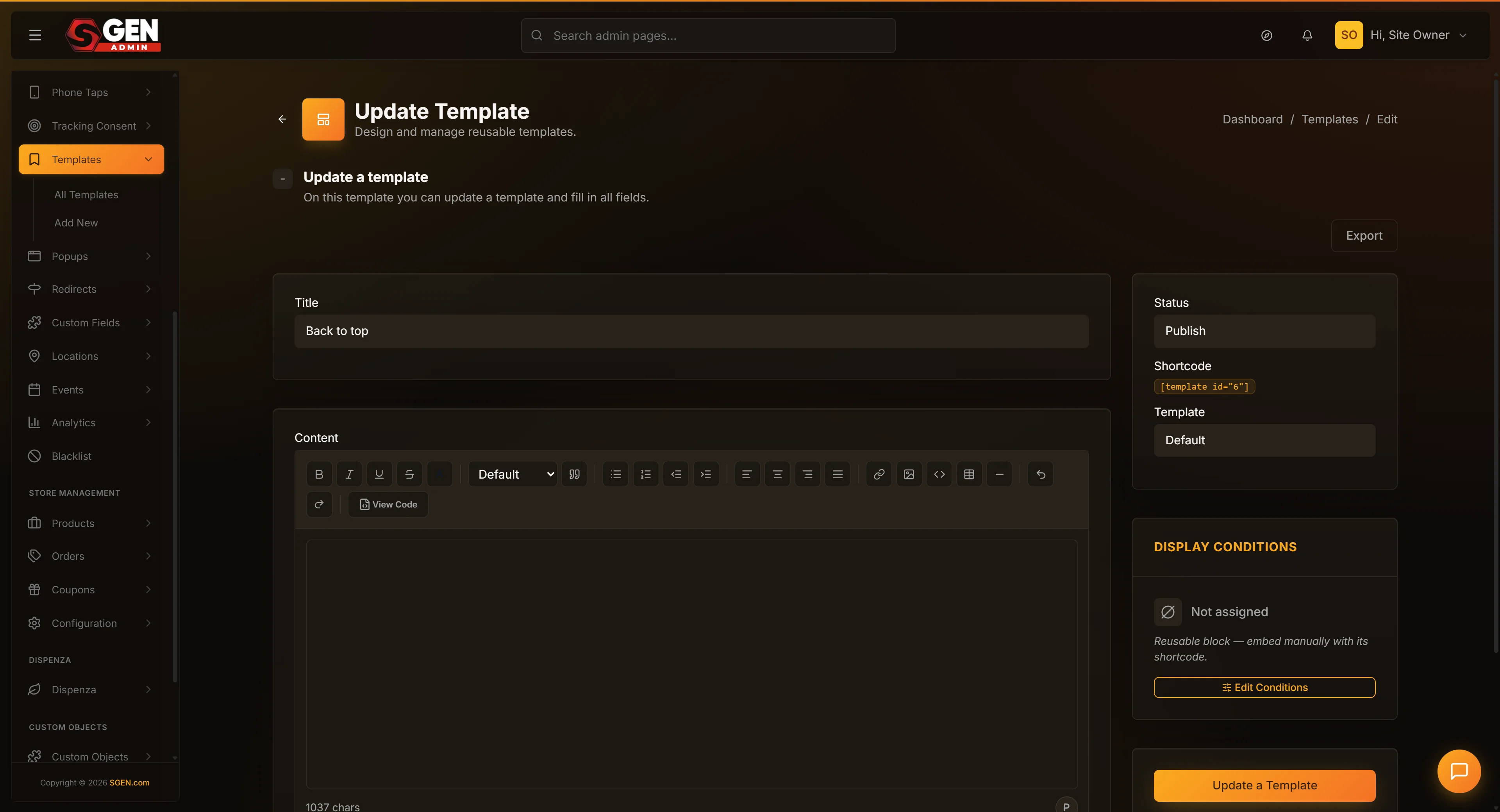
In your admin sidebar, click Templates. Find the template in the list and click Edit on its row. If you're unsure which template is which, check the "Pages using" column — the one applied to most pages is usually the one you want.
2. Click the Export button
On the template's edit screen, click Export at the top of the page (top-right cluster, near Save and Duplicate). The button briefly shows a loading state while the system reads and packages the template — typically two to three seconds.
3. Save the file when your browser asks
Your browser opens a Save dialog or starts the download immediately. The default filename looks like templates-2026-05-09.json — it uses the date, not the template name.
Rename it before saving — or immediately after. Good naming pattern: yourstore-coffee-default-template-2026-05-09.json (brand + template purpose + date + .json). Five seconds now saves five minutes of guessing later.
4. Move the file to durable storage
Don't leave the file in Downloads — it disappears in cleanups and computer replacements. Move it to cloud storage (Dropbox, Google Drive, OneDrive) or a team-shared drive. This step takes ten seconds.
5. Repeat for any other templates you want to export
The action handles one template at a time. Go back to the Templates list, click Edit on the next template, and repeat.
What success looks like
When the export works:
- The Export button briefly shows a loading state.
- Your browser starts a download — a
.jsonfile appears in your Downloads folder (or your chosen save location). Size is typically 5 KB – 50 KB. - The live site is completely unchanged. No banner, no style shift, nothing visible to visitors or other admins.
To spot-check: open the file in any text editor. You should see your template's section names and component types. You don't need to understand every line — if the structure is recognizable, the export captured what it was supposed to.
What to do if it does not work
The Export button does not respond. Check your browser for a suppressed download warning near the address bar. If there's none, press Ctrl+R (Windows) or Cmd+R (Mac) to refresh and try again.
The button is missing or greyed out. Your account may not have permission to export templates even if you can edit them. Try a different browser first — if the button is missing there too, ask your site owner to check your permissions or contact support.
The file downloads but it is empty (0 bytes). Refresh the page. If the template still shows in the editor, try Export again. If a second attempt also produces an empty file, contact support with the template name and a screenshot.
The file has the wrong name even though I tried to rename it. Some browsers ignore custom filenames and use the server's suggested name. Rename the file after download in your file manager — this doesn't affect the contents.
The download never finishes. Wait at least 30 seconds for large templates. If it times out after a minute, refresh and try again. Repeated timeouts: contact support.
The export is missing recent edits. The export reads the template state at the moment you click Export. If you just made a change, wait 10–15 seconds for the save to complete and re-export — or click Save explicitly, watch for the "saved" confirmation, then export.
Templates doesn't appear in my sidebar at all. Your account doesn't have permission for the Templates area. Contact your site owner.
Example: rolling back after a risky change
A marketing manager wants to add a new live data widget to the homepage template. Before touching anything, she goes to Templates → Edit → Your Store Default and clicks Export. She renames the file yourstore-coffee-pre-widget-2026-05-09.json and drops it into cloud storage.
She adds the widget. It works for two days — then the data source has an outage and the widget renders as an empty broken box during morning traffic. She opens Templates → Import, uploads her snapshot, and the homepage is back to its known-good state in under three minutes. She sends the export file to the developer asking for a fix that handles the offline case. While the fix is being built, the homepage stays clean.
Tips for managing exported templates
- Rename every file the moment you download it. Default filenames are identical at a glance.
- Use a naming pattern that captures purpose.
yourstore-coffee-pre-rebrand-2026-04-04.jsonfor "before a big change";yourstore-coffee-launch-day-2026-03-15.jsonfor milestone archives. - Store in cloud storage, not Downloads. Files in Downloads disappear in cleanups and computer replacements.
- Prune annually. Keep "before major change" and "launch day" snapshots indefinitely; delete routine snapshots older than 18 months.
- Treat exports as private. The file describes how your site is built — share with developers and trusted teammates, not the public internet.
- Test an import once. Import a recent export on a staging site to confirm everything comes back correctly. A backup you've never tested is one you don't know works.
Frequently asked questions
How often should I export my templates? Monthly for templates in active development; quarterly for stable templates. Always export immediately before any major change.
How long does an export take? Two to three seconds for most templates; up to ten seconds for very large ones with many custom components. If a minute passes with no download, something is wrong — refresh and try again.
How big is the file? Typically 5 KB – 50 KB. Templates are mostly structure and rules, not media, so files stay small.
Can I export multiple templates at once? No. The action exports the single template you are currently editing. To get all your templates, export them one at a time.
Does the export include images and other media? No. The file references media by ID. If you import the template into a different SGEN site, image references won't resolve unless the same media also lives on the destination.
Does the export include theme settings (colors, fonts)? No. Theme settings live separately and are not bundled into the export. The template will render using the destination site's own theme settings.
Can I edit the file by hand? Technically yes, but small mistakes can break the import. If you want to change something, change it in the admin editor and re-export.
Can I share an export with a developer who doesn't have admin access? Yes — that's one of the main use cases. Send the file by email or cloud-storage link.
Will my live site be slow during the export? No. The export reads template definitions without locking them. The site continues to render normally for visitors.
Is there an audit log of who exported and when? Not at this time. If you need to track exports for compliance, note the date and time yourself.
Can I import an export from a much older version of SGEN? Usually yes, but test on a staging site first for exports more than a year old. The format is generally backward-compatible but older exports occasionally need small adjustments.
Next steps
- Import a template you exported earlier — the partner action: roll back on the same site or seed a new one.
- Import a template from an external source — for templates from a marketplace or starter pack (extra validation applies).
- Export your site pages to a file — for backing up page content (words, images, products) rather than the template design.
- For a complete site safety snapshot — templates, content, settings, media all in one — use Migration → Backups.
What template export does NOT cover
| Not covered | Use instead |
|---|---|
| Page content (words, images) | Tools -> Page Migration -> Export |
| Full site safety snapshot | Migration -> Backups |
| Theme settings (colors, fonts) | Theme settings have their own backup path |
| Media files | Media is referenced by ID, not bundled — upload media separately on the destination |
| Partial template export (e.g. header only) | Screenshot or describe in writing |
| Non-SGEN platforms | The format is SGEN-specific — destination platforms require a rebuild |