
How to edit an existing custom object type
⏱ 60-second answer below · full page ≈ 8 min · skim the bold lead-ins.
In short. Open Custom Objects in the sidebar, click a type, change what you need, click Update Item. Most edits — title, status, items-per-row, SEO defaults, inject scripts — are safe and take effect immediately. Slug and permalink structure are risky: they rename every public URL for that type, breaking external links unless you set up redirects first. That's the rule. Everything below is detail.
On this page: What this is for · Safe vs. risky changes · Steps · Troubleshooting · Vocabulary
What is this for?
The edit screen lets you update any setting on a custom object type — title, slug, status, template assignments, layout, SEO defaults, inject scripts — without affecting the items inside it. Changes take effect immediately on save.
The edit screen is the same form you used to create the type, pre-filled with the current values. You only touch what needs changing.
Two categories of change:
- Safe changes — title, status, items-per-page, items-per-row, SEO defaults, header/footer scripts. No public URL impact.
- Risky changes — slug, permalink structure, template swaps. Slug and permalink changes rename every existing public URL. Template changes affect what visitors see immediately on the next page load.
The edit screen also exposes two actions unavailable on the create form: View Pages (jump to the items browser) and Move to Trash (soft-delete the type without deleting items inside it).
Examples
Common edit scenarios and their impact at a glance:
| What you want to do | Field to change | Safe? |
|---|---|---|
| Rename the type (admin UI only) | Title | Yes — slug stays unchanged |
| Bump from 3-up to 4-up grid | Items per row | Yes |
| Change pagination depth | Items per page | Yes |
| Add SEO meta defaults to every item | SEO fields | Yes |
| Temporarily hide type + archive | Status → Draft | Yes — items not deleted |
| Add a footer analytics script | Footer scripts | Yes |
| Switch single-item template | Single template | Careful — affects live renders immediately |
| Switch archive listing template | Archive template | Careful — affects live renders immediately |
| Rename the public archive URL | Slug | Risky — breaks every /old-slug/ URL |
| Change item URL pattern | Permalink structure | Risky — breaks every item URL |
Worked example — bumping items per row. Your Store changes Products from 3-up to 4-up: Sidebar → Custom Objects → click "Products" → Items per row: change 3 → 4 → Update Item. The public /products/ archive updates on next load. No URLs change, no items affected.
Worked example — hiding a type temporarily. Open the type → Status: Draft → Update Item. The sidebar entry disappears and the public archive 404s, but all items are still in the database. Flip back to Published when ready — everything reappears.
Scope
The edit screen changes a type's definition — title, slug, status, template assignments, layout settings, SEO defaults, inject scripts. It does not change items inside the type; those are managed from the items browser. High-impact changes (slug, permalink structure) affect public URLs on the live site the moment you save.
Full detail on creating a new type: Create a new custom object type.
Vocabulary
| Term | Meaning |
|---|---|
| Type definition | The structural settings for a custom object type — title, slug, templates, layout, scripts, status. Separate from the items inside the type. |
| Safe change | A field change that does not break existing public URLs or rendered pages — e.g. title, status, items per page. |
| Risky change | A field change that breaks or alters existing public URLs — slug or permalink structure changes. |
| Slug | The URL-safe identifier used in the public archive path. Changing it renames the archive URL. |
| Template assignment | Pointing the type to a specific SG-Builder template for single, archive, or loop-item views. |
| Status | Published = archive and single pages are public. Draft = admin-only, no public pages. |
What NOT to use this for
- Don't edit a type to delete its items. The edit screen only changes the type definition. To delete items, use the items browser (Sidebar → [Type Name]).
- Don't change permalink structure casually. Every existing item URL changes, and external links break unless you set up redirects from the old pattern first.
- Don't change the slug on a published type without first planning redirects from
/old-slug/→/new-slug/. - Don't switch templates without confirming the new template exists and is fully built. A half-built template breaks public rendering immediately.
- Don't trash a type when you meant Status = Draft. Draft hides the type without the trash classification — safer for temporary hiding.
How this connects to other features
- Create a new custom object type — the edit screen is the same form, pre-filled. Full detail: Create a new custom object type.
- All custom objects list — the edit screen is reached from a list row. Saving keeps you on the edit screen; click All Objects in the breadcrumb to return to the list.
- View Pages — jumps to the items browser for this type (same as clicking the type in the sidebar).
- Move to Trash — soft-deletes the type. Items inside are NOT deleted. Restore via the Trash filter on the All Objects list.
- Templates area — single, archive, and loop-item dropdowns pull from Templates. If a template isn't in the dropdown, check it exists there first.
- Custom Fields — field groups attach by slug (not title). Renaming a type title doesn't break Custom Fields; changing the slug might.
- Redirects — if you change permalink structure, set up redirects in the Redirects area to keep old URLs working.
Before you start
- Know exactly what you're changing. Don't browse the form looking for things to update — go in with one or two specific fields in mind.
- For risky changes, screenshot the current values first. Restoring is much easier when you remember what was there.
- For permalink changes, set up redirects before you save. Otherwise external links break between save and redirect setup.
- For template changes, confirm the new template is fully built with whoever maintains your theme.
- Coordinate with your team. Last save wins — don't edit the same type simultaneously from two tabs.
Where to go
Sidebar → Custom Objects → click the row for the type, OR click the Edit action in the row's hover menu.
Click any title in the list, or click the Edit row action, to open the edit screen. The URL becomes /sg-admin/custom_objects/edit/. The breadcrumb reads Dashboard → All Objects → Edit. All fields are pre-filled with the current saved values.
Steps — Update an existing custom object type
1. Open the All Custom Objects list
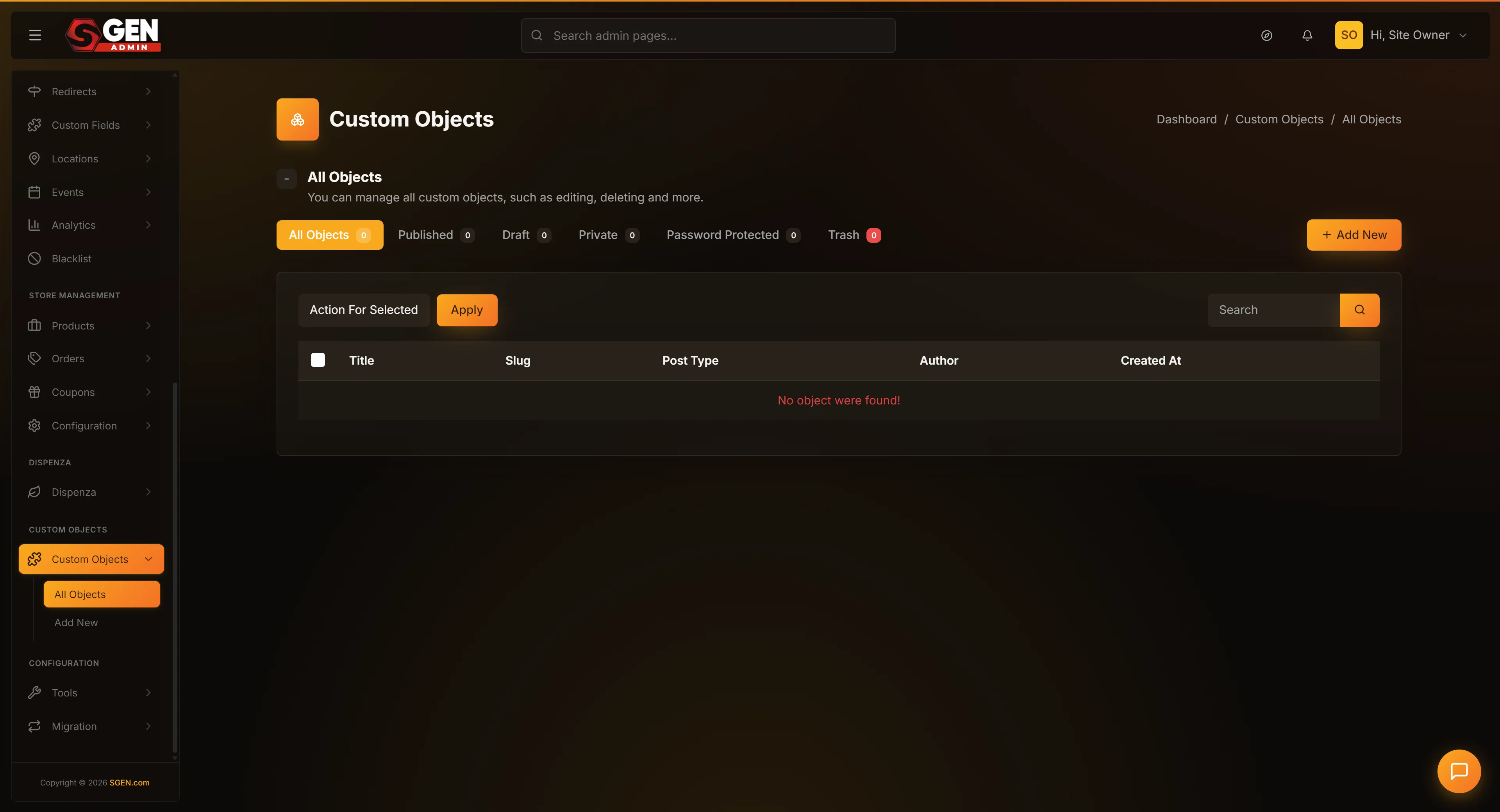
Click Custom Objects in the sidebar. Use the filter pills (All / Published / Draft / Trash) or the search box to find the type.
2. Click the type you want to edit
Click the type's title, or hover the row and click Edit. The edit form opens with all values pre-filled.
3. Update only what you intend to change
Find the specific field, update it, then scroll to the sidebar and click Update Item. Leave everything else alone — the form is already set to the last-saved values.
4. For risky changes, double-check before saving
Pause if you are changing:
- Slug — renames the public archive URL (e.g.,
/recipes/→/cookbook/). Every published item URL changes. - Permalink structure — changes every item URL. External bookmarks and search-cached results will break.
- Single or archive template — affects live rendering immediately. Confirm the new template is fully built.
- Loop item template — changes every item card across listings and related-item strips.
Safe pattern: confirm with your theme maintainer before template changes; set up redirects before permalink/slug changes.
5. Click Update Item
Click Update Item in the right sidebar. On success you'll see "The custom object has been successfully updated!" and remain on the edit screen showing the new values.
6. Verify the change took effect
| Change made | How to verify |
|---|---|
| Items per row / per page | Open the public archive in a private browser window |
| Title | Check the All Objects list and sidebar entry |
| Status | Sidebar entry appears (Published) or disappears (Draft) |
| Permalink / Slug | Open an item's public URL; confirm old URLs redirect |
| Template | Open the public single or archive in a private window |
What success looks like
Three things should be true after saving:
- The All Custom Objects list shows the "Updated" timestamp as "a moment ago".
- The edit screen shows the updated values when you reload it.
- The public-facing change is visible in a private browser window.
If the change isn't visible, check: did the save succeed (success message present)? Are you viewing the page in a private window (not a cached tab)?
What to do if it does not work
- Edit page 404s or is blank. The type's ID in the URL is wrong, or the type was deleted. Go back to the All Objects list to find the type.
- Clicked Update Item but nothing happened. Look for red field borders. Empty Title is the most common validation failure — fix highlighted issues and try again.
- Change didn't appear on the public site. Reload in a private window. If still stale, check whether Status is set to Draft (which hides public pages) and that any new template is deployed.
- Public archive 404s after a permalink change. The new permalink may be malformed (must start with
/and contain%slug%), or the type may still be Draft. - External links 404 after a permalink change. Set up redirects from the old pattern to the new pattern in the Redirects area.
- Move to Trash only — no delete button. That's correct. Trash soft-deletes the type; items inside are not removed. Restore from the Trash filter on the All Objects list.
- You can't find Update Item. It's in the right sidebar, alongside View Pages and Move to Trash. On narrow screens it may scroll below the main panel.
Next steps
- Find and filter custom object types — manage your types list, filter by status, search.
- Create a new custom object type — understand how the form is structured (edit uses the same form).
- After updating the type, open the items browser (Sidebar → [Type Name]) to verify items render correctly.
- For permalink changes: set up redirects in the Redirects area.
- To soft-delete the type: use Move to Trash. Items inside are not removed from the database; restore anytime from the Trash filter.
Safe vs. risky changes when editing a custom object type
| What you want to do | Field to change | Safe? |
|---|---|---|
| Rename the type (admin UI only) | Title | Yes — slug stays unchanged |
| Bump from 3-up to 4-up grid | Items per row | Yes |
| Change pagination depth | Items per page | Yes |
| Add SEO meta defaults to every item | SEO fields | Yes |
| Temporarily hide type + archive | Status -> Draft | Yes — items not deleted |
| Add a footer analytics script | Footer scripts | Yes |
| Switch single-item template | Single template | Careful — affects live renders immediately |
| Switch archive listing template | Archive template | Careful — affects live renders immediately |
| Rename the public archive URL | Slug | Risky — breaks every /old-slug/ URL |
| Change item URL pattern | Permalink structure | Risky — breaks every item URL |