
Bulk-edit posts and search the post list
⏱ Quick answer below · full page ≈ 8 min · skim the bold lead-ins to move faster.
In short. The bulk action menu and search bar sit at the top of every post list (Blog, Pages, Events, any custom post type). Select rows with checkboxes, pick Publish, Move to Draft, Move to Trash, or (from the Trash tab) Delete Permanently, then click Apply — the action fires on every selected row at once. The search box filters by post title; the filter tabs narrow by status. Use these together to act on a precise batch of posts in one click instead of opening each post individually.
On this page: What it does · Good use cases · What NOT to use it for · Before you start · Steps — bulk publish · Steps — bulk trash · Steps — search · Troubleshooting · FAQ
How to bulk-edit posts and search the post list
What is this for?
The bulk-edit and search controls are the top bar of every post list — Blog, Pages, Events, and any custom post types. Bulk actions change the status of many posts in a single click: publish a batch of drafts, move stale items to trash, demote published posts back to draft, or permanently delete from the Trash tab. Search and filter narrow a long list down to the exact posts you want before you act.
Good use cases
- Publishing a backlog of edited drafts. A senior editor finishes the editorial pass on six drafts in one sitting. Rather than open each draft and click Publish, they go to the Blog list, filter by Draft, select the six rows, pick Publish from the bulk action menu, and apply. All six go live in a single click.
- Trashing a batch of expired promotional posts. A holiday promotion ended. The associated category has eight posts that are no longer relevant. The marketing lead opens the Blog list, filters by category, selects all eight rows, picks Move to Trash, and applies. The eight posts move to the Trash tab in one action.
- Demoting recently-published posts back to draft for revision. A QA review found small errors in a batch of newly-published posts. Rather than unpublish each one separately, the editor selects them all and picks Move to Draft. They drop out of the live site, the editor fixes them, and bulk-publishes them again later.
- Emptying the trash after a quarterly cleanup. Trashed posts sit indefinitely until you act on them. Once a quarter, an admin opens the Trash tab, selects all rows, and picks Delete Permanently to free database space and clear retired slugs.
- Finding a post by title fragment. A reader emails to ask about "the article on tote bag care". The editor types "tote bag" into the Blog search box and hits enter. The list filters to the matching post, ready to open.
- Narrowing a long list to a specific status. A site has 400 blog posts and 30 drafts. Looking at all 430 at once is unmanageable. The Draft filter tab cuts the list to the 30 drafts.
- Finding posts in a specific category and acting on them in bulk. Combine the search box with category filters to narrow to a category, then bulk-act on the result. Example: filter by "Archived Guides" category, select all, move to draft to take them off the public site for a content refresh.
What NOT to use this for
- Editing the body content of multiple posts. Bulk actions only change post status (Publish, Draft, Trash, Delete Permanently). They do not edit the post body, title, categories, tags, featured image, or anything else inside the post. To edit content, open the post in the editor.
- Changing the post type. Bulk actions never change a Blog post into a Page, an Event into a Blog post, or any other post-type swap. Post type is set at creation and is not editable from the bulk action menu.
- Moving posts between categories. Categories are managed inside each post's editor. Bulk actions do not add or remove categories.
- Re-assigning posts to a different author. Authorship is set on each post individually. Bulk actions do not change author.
- Searching across post types at once. Each post-type list has its own search box. Searching on the Blog list does not search Pages, Events, or other types. To search across types, switch lists and search again.
- Bulk-deleting a category, tag, or other taxonomy term. Bulk actions on the post list affect posts. To bulk-delete categories or tags, use the Categories or Tags list and the bulk-action controls there.
- Searching post body content. The search box on the post list searches the post title only, not the post body. To find posts by body content, use the Search & Replace tool or open posts individually and use your browser's find-in-page.
- Restoring a single trashed post. Restore is only a row action on the Trash tab. To restore one post, click the Restore row action on its row.
How this connects to other features
- Move a post to trash — the single-row equivalent of bulk Move to Trash. Use Move to Trash on a single row when you only want to trash one post; use the bulk action when you have several.
- Restore a trashed post — the recovery path after Move to Trash. Restore is a row action on the Trash tab, not a bulk action.
- Permanently delete a post — the irreversible action available only from the Trash tab. The bulk Delete Permanently action also lives there.
- Edit a post — the place to change post content. Bulk actions never touch post content. If you need to update a phrase across many posts, use Search & Replace, not the bulk action menu.
- Search & Replace tool — for changing text across many posts at once. The bulk action menu does not edit text; Search & Replace does.
- Categories and tags — apply category and tag filters to narrow the list before a bulk action. The combination of a filter and a bulk action lets you act on a precise slice of posts.
- Post type lists (Blog, Pages, Events) — the same bulk and search controls appear on every post-type list. The behavior is identical across types.
- Trash tab — where bulk Move to Trash sends the selected posts. Bulk Delete Permanently is only available from this tab.
Before you start
- Trash removes posts from the public site immediately. If a post has external links pointing to it, consider setting up a redirect before trashing. Once trashed, the URL returns Page Not Found.
- Publish goes live the moment you click Apply. Check the selection for drafts with placeholder text or unfinished sections before applying.
- Move to Draft pulls published posts off the public site immediately. The URL returns Page Not Found until the post is re-published.
- Delete Permanently is irreversible. Featured images stay in the Media library, but the post body, categories, tags, and revision history are gone permanently.
- No confirmation dialog for Publish, Draft, or Trash. Only Delete Permanently prompts for confirmation. The other actions fire immediately on Apply — review your selection before clicking.
- Available actions depend on the active tab. On the Trash tab, you see Delete Permanently. On all other tabs, you see Publish, Move to Draft, Move to Trash.
- Selection is per page. Rows selected on page 1 are forgotten when you navigate to page 2. Narrow the list with search or filter so all target rows are visible on one page before selecting.
- Bulk actions only change post status. No action edits post body, title, author, publish date, categories, or tags.
Where to go
Dashboard → Blog (or Pages, Events, or any custom post type) → top of the list.
The bulk action dropdown is above the table on the left. The search box is above the table on the right. The filter tabs (All, Published, Draft, Scheduled, Trash) sit above both.
Steps — Bulk-publish a batch of drafts
1. Open the post list and filter to drafts
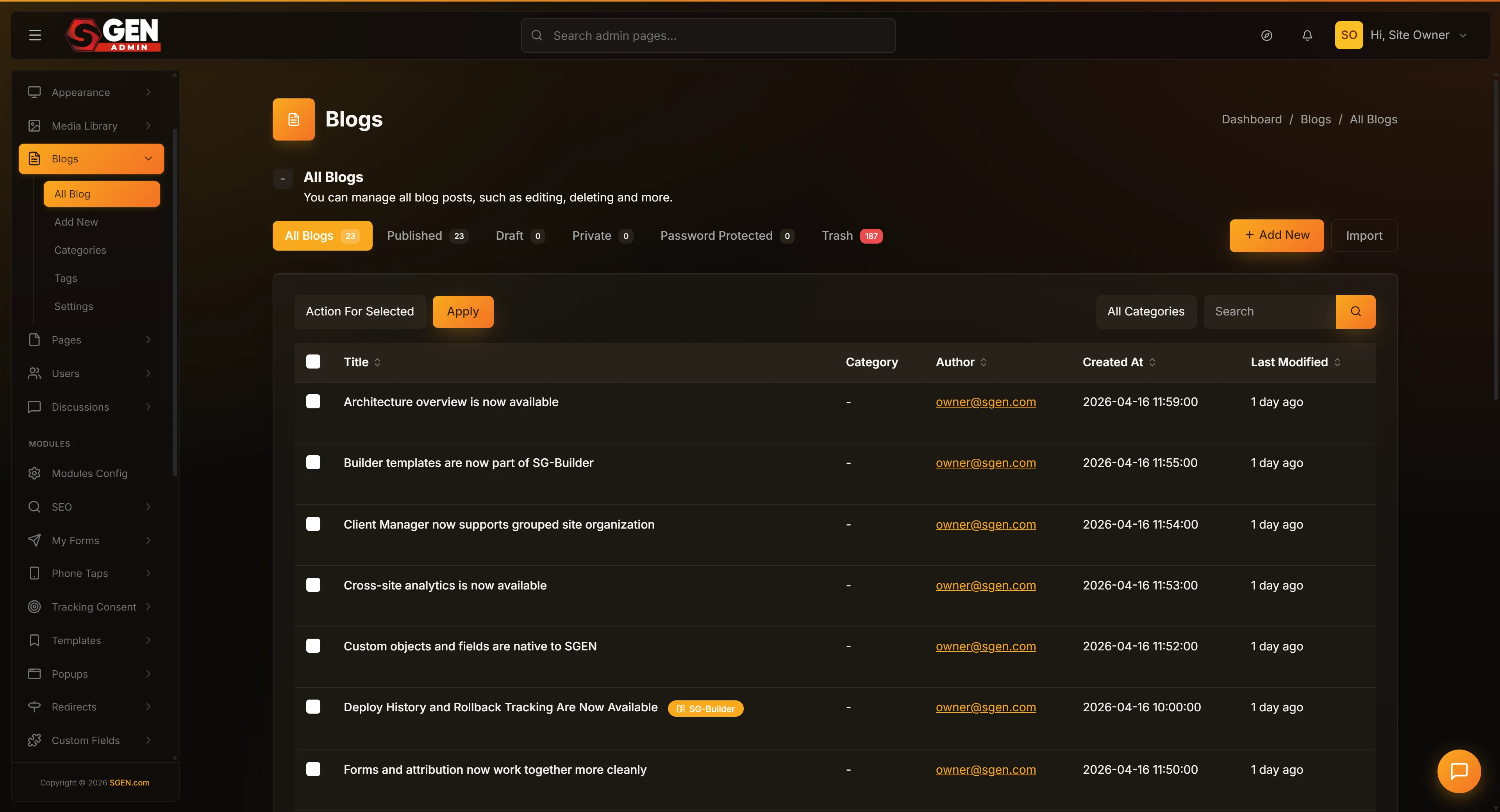
From the dashboard, click Blog (or Pages, Events, or another post type) in the left sidebar. The post list opens with the All tab active by default.
Click the Draft filter tab above the table. The list filters to only drafts. The counter on the Draft tab tells you how many drafts there are. The other tabs (All, Published, Scheduled, Trash) stay visible but inactive.
If you want to narrow further — for example, to drafts in a specific category — type a search term in the search box and press enter. The list narrows to drafts whose title matches your search.
2. Select the rows you want to publish
Each row has a checkbox at the left end. Click the checkbox for each draft you want to publish. The row gets a subtle highlight indicating it is selected.
To select every visible draft on the page, click the checkbox in the table header. Every row's checkbox ticks at once.
The bulk action toolbar at the top of the table now shows the selection count. If you accidentally select a row you do not want, click its checkbox again to deselect.
If your selection spans multiple pages, you have to repeat the selection on each page. Each page maintains its own selection state — navigating to page 2 forgets the selections on page 1. To work around this, search or filter so the rows you want are all on one page.
3. Pick "Publish" from the bulk action dropdown
The bulk action dropdown is to the left of the table, just above the rows. Click it. The dropdown opens with options including Publish, Move to Draft, Move to Trash.
Click Publish. The dropdown closes with "Publish" displayed as the selected action.
4. Click Apply
To the right of the bulk action dropdown is an Apply button. Click it.
The selected drafts publish immediately. The list reloads with the rows now showing Published status. The Draft tab counter goes down by the number you published, and the Published tab counter goes up by the same number.
There is no confirmation modal for Publish — the action is non-destructive (you can always re-draft) and fires immediately on Apply.
5. Verify on the public site
Visit your blog homepage (or the relevant post-type archive) and confirm the new posts appear. Click into one to confirm the post body renders as expected.
If a post is missing categories or tags or a featured image, you can edit it now — bulk publish does not block subsequent edits.
Steps — Bulk-trash old promotional posts
1. Filter the list to the relevant category
Open the post list. If you know all the posts you want to trash share a category, use the category filter at the top of the list to narrow down. If they do not share a category, use search to find the common phrase in their titles.
The narrower the list, the safer the bulk action — you will not accidentally include unrelated posts.
2. Confirm visually that you have only the rows you want
Look down the list and read each title. If you see a post that should not be trashed, it means the filter or search was not narrow enough. Narrow further before selecting.
This visual review takes a few seconds and prevents you from trashing the wrong posts.
3. Select all rows on the filtered list
Click the header checkbox to select every row, or click each row's checkbox individually if you only want some of them.
The bulk action toolbar shows the selection count. Confirm the count matches what you expect.
4. Pick "Move to Trash" and Apply
Open the bulk action dropdown, pick Move to Trash, and click Apply.
The selected rows move to the Trash tab. The list reloads with those rows gone. The All tab counter goes down. The Trash tab counter goes up.
A success message confirms how many posts were trashed.
5. (Optional) Permanently delete after a waiting period
A common pattern is to wait a week or two before permanent-deleting trashed posts. This gives the team time to flag any that should come back. After the waiting period, open the Trash tab, select all the rows that have been there long enough, pick Delete Permanently from the bulk action menu, click Apply, and confirm the modal.
Permanent delete is irreversible — the post is gone from the system.
Steps — Search the post list
1. Type in the search box
The search box is above the table on the right side. Click into it and type the phrase you remember from the post title. The search matches post titles, not post body text.
Search is case-insensitive. Typing "tote bag" finds a post titled "Caring for your Canvas Tote Bag".
2. Press enter or click the search icon
Press enter on the keyboard, or click the magnifying-glass icon next to the search box. The list filters to posts whose title contains your search phrase.
The URL changes to include the search term as a parameter, so you can bookmark a search or share the URL with a colleague.
3. Combine search with a filter tab if needed
Search and filter tabs work together. If you searched "t-shirt" and got 14 results across both Published and Draft, click the Published tab to see only the 11 published ones. Or click the Draft tab to see only the 3 drafts.
The search term stays applied as you switch tabs. To clear the search, empty the search box and press enter.
4. Clear the search to return to the full list
To clear the search, click the X icon in the search box (if visible) or empty the search box and press enter. The list refreshes to show all posts in the current filter tab.
What success looks like
| Action | What changes in the admin | What changes on the public site |
|---|---|---|
| Bulk Publish | Rows move from Draft → Published tab. Published counter goes up. | Posts appear on the blog homepage, category/tag archives, and search results immediately. |
| Bulk Move to Trash | Rows move to Trash tab. All/Published/Draft counters go down. | Posts stop being served — URLs return Page Not Found immediately. |
| Bulk Move to Draft | Rows move from Published → Draft tab. Published counter goes down. | Posts leave the public site — URLs return Page Not Found until re-published. |
| Bulk Delete Permanently | Confirmation modal fires. After confirming, rows disappear from the Trash tab. No recovery. | Posts already off the public site (they were in Trash). Slugs are freed. |
| Search | List filters to title-matching posts. URL updates with the search term. Filter tabs remain active. | No change to the public site. |
What to do if it does not work
- The bulk action dropdown is missing or disabled. Some user roles do not have permission to perform bulk actions. Confirm with whoever administers the site that your role can edit posts. If you are an editor or admin, the dropdown should be present.
- You clicked Apply but nothing happened. Reload the post list page (hold Shift and click reload). The list should refresh with the action applied. If the rows still show their old status, the bulk action did not save. Try again. If it still fails, log out and log back in.
- You selected rows on page 1, navigated to page 2, and your page-1 selections are gone. This is by design. Each page of the list has its own selection state. To act on rows across pages, narrow the list with search or filter so all the rows fit on one page, or do the bulk action page by page.
- Search returns no results even though you know there is a matching post. Search matches the post title only, not the post body. If your search phrase is in the body, you will not find the post via search. Use the Search & Replace tool to search post bodies, or open the post directly if you know the slug.
- Search returns too many results. Combine search with a filter tab to narrow further. Or search for a more specific phrase. The post-list search is exact-substring match.
- You bulk-trashed a batch but cannot find them on the Trash tab. Confirm the Trash tab is selected (the active tab has a different background). The Trash tab counter should reflect the recently-trashed posts. If the counter shows zero, the trash action did not save and you need to repeat it.
- You bulk-published drafts but they are not showing on the public site. Browser caches and CDN caches can delay public-site updates. Refresh the public-site page. If you have a CDN configured, it may take a few minutes for changes to propagate. Posts always show in the admin's Published tab as soon as they are bulk-published — the delay is on the public-site delivery side, not in the admin.
- Bulk Delete Permanently confirmed but rows are still there. Reload the Trash tab. If the rows are still there, the delete did not save and you need to retry. If retry also fails, contact whoever administers the site — there may be a database-level issue preventing the delete.
- The search box is empty but the list is still filtered. The search term may be cached in the URL. Reload the page or clear the URL parameters. The list should reset to show all posts.
- Bulk Move to Trash worked, but you noticed the wrong post got trashed. Open the Trash tab. Find the post. Click the Restore row action on it. The post comes back as a Draft. Re-publish if it was Published before, or leave it as Draft if it was a Draft.
Example 1: Your Store's Monday morning publishing batch
Your Store's lead writer drafts blog posts on Fridays and reviews them on Monday mornings before bulk-publishing. Each Friday, three to five posts are written. Each Monday, there is an editorial pass — fixing typos, adjusting headlines, double-checking facts — and then the batch is published.
This Monday there are six drafts queued from the previous Friday and Saturday. Open the Blog list, click the Draft filter tab, and see the six drafts. Click the header checkbox to select them all, pick Publish from the bulk action dropdown, and click Apply.
The six drafts publish in a single action. The Draft tab counter drops from 6 to 0. The Published tab counter goes from 52 to 58. Navigate to the public-site blog homepage and confirm the new posts appear in the latest-posts widget. Spot-check two posts to confirm the body renders correctly.
Total time: about 30 seconds for the bulk action plus a minute or two for the spot-check. Without the bulk action, publishing six posts one at a time would have taken several minutes of clicking through each post and pressing Publish, with the same number of round-trips to the public site to verify.
Frequently asked questions
Can I undo a bulk action?
For Publish, Move to Draft, and Move to Trash, yes — apply the inverse bulk action. Bulk-trashed posts can be restored one at a time from the Trash tab. Bulk-published can be moved back to Draft. Bulk-drafted can be re-published.
For Delete Permanently, no. There is no undo. Posts deleted permanently cannot be recovered from the standard interface.
Does the bulk action apply across all pages of the list?
No. Bulk actions apply only to rows you have selected. Selection is per-page — selecting on page 1 then navigating to page 2 forgets the page 1 selections. To bulk-act on rows from multiple pages, narrow the list with search or filters so all the rows fit on one page first, or do the bulk action one page at a time.
Can I customize which actions appear in the bulk dropdown?
Not from the standard interface. The bulk action options (Publish, Move to Draft, Move to Trash, Delete Permanently) are fixed. Custom post types share the same options.
Does the search box search post body content?
No. The search box on the post list searches the post title only. To search post body content, use the Search & Replace tool from the Tools menu.
What happens to scheduled posts when I bulk-move them to draft or trash?
Bulk-moving a scheduled post to Draft cancels the schedule — the post will not auto-publish at the scheduled time. Bulk-trashing a scheduled post also cancels the schedule. To re-schedule, restore the post and set the schedule again.
Can I undo a bulk Delete Permanently?
No. Once Delete Permanently confirms, the post rows are gone from the database. Featured images stay in the Media library, but the post body, title, categories, tags, and revision history are unrecoverable.
Why does the redirect after a bulk action sometimes land on the wrong tab?
This is a small UX rough edge. The action always applies correctly — the redirect just sometimes lands on the All tab instead of the tab matching the action. Manually click the relevant tab to confirm what you did is reflected in the counts.
Do bulk actions notify post authors or subscribers?
No. Bulk actions are silent — they change the database directly. They do not send email notifications to authors or subscribers. If you want to notify someone, do it manually outside of the admin.
Can I bulk-restore from the Trash tab?
Restore is only available as a row action on each Trash row, not as a bulk action. To restore many trashed posts, you have to click Restore on each row individually. The bulk Delete Permanently action is the only bulk option on the Trash tab.
Does the bulk action menu work the same way for Pages, Events, and custom post types?
Yes. The bulk action menu, search box, and filter tabs all behave identically across Blog, Pages, Events, and any custom post types. The exact tab labels may differ slightly (Pages may not have a Scheduled tab if scheduling is not configured for pages), but the actions and behavior are the same.
Next steps
- Move a post to trash — single-row equivalent of bulk Move to Trash.
- Restore a trashed post — recovery workflow on the Trash tab.
- Manage post categories and tags — category and tag controls that combine with bulk actions to narrow the list.