
Re-show the age verification gate on your site
⏱ ~5 min read · how-to reference — reset the gate for testing, demos, or visitor self-serve.
In short. Visiting /do_actions/remove_age_verification on your site clears the browser's saved age confirmation. The gate re-appears on the next page load. No admin button, no log entry — it is a single cookie clear, per visitor, per browser.On this page: What this is for · Good use cases · What NOT to use this for · Scope · Fields · Steps · Examples · Common questions
What is this for?
Your site has an age verification gate — a screen that asks visitors to confirm their age before browsing your content. When a visitor confirms, the site saves their answer for a set number of days. After that period, the gate re-appears automatically.
Sometimes you (or a visitor) need to reset that saved answer early — to test the age verification gate as a brand-new visitor, demo it to a colleague, or give visitors a self-serve way to clear their confirmation. That is exactly what this feature does: it clears the "I already confirmed" cookie so the gate appears again on the next visit.
Three audiences reach for this:
- You, the site owner — routine quality checks on the gate.
- Your team — previewing the gate during design review or content QA.
- Your visitors — if you choose to expose a "Reset my age confirmation" link on your site.
The reset is a single browser-level action. There is no admin button and no audit log. Your site only knows "this browser has a saved confirmation" or "it does not" — the reset removes the saved confirmation, and the next confirmation creates a new one.
Good use cases
- Test the gate as a brand-new visitor. You updated your theme or gate wording and want to see it live on your own browser without waiting for the cookie to expire.
- Demo the gate during a screen share. Reset first, then walk a colleague through the first-visit experience.
- Give visitors a self-serve reset link. Useful for shared computers or kiosk setups where each visitor should see the gate.
- Quality-check the expiration setting. Manually reset to confirm how often the gate re-appears for a typical visitor.
- Recover from a stuck state. If the gate gets out of sync, a reset is the cleanest fix.
- Pre-launch checklist. Before launching a gated section, run a full reset-and-confirm cycle on every major browser.
- Staff training. Reset, then walk new team members through what visitors see — valuable for compliance teams who need to understand the visitor experience first-hand.
- Compliance audit support. Auditors often want to see the gate appear, the confirmation work, and the reset path function. The reset URL makes their checklist straightforward.
What NOT to use this for
- Disabling the age gate entirely. This only clears one visitor's saved answer. To disable the gate site-wide, go to Settings → Age verification and toggle it off.
- Logging out of your admin account. This has nothing to do with admin login. Use the Logout button in the admin sidebar.
- Clearing visitor browsing history. This only affects the age-verification confirmation cookie.
- Ending a visitor's shopping session. Cart contents and checkout state are separate from age verification.
- Resetting confirmations for all visitors at once. There is no "reset everyone" button — the feature is per-browser, per-visitor.
- Preventing minors from confirming. The gate records a stated answer, not a verified age. The reset clears that answer; it cannot provide real age verification.
Scope
Re-showing the age verification gate applies per-browser and per-visitor:
- Visitor self-serve: visitors clear their own confirmation by navigating to the reset URL or clicking a reset link you add to your site. The gate appears again on their next page load.
- Admin demo reset: administrators testing on the same browser use the same reset URL — identical mechanic.
- Per-domain: the confirmation is domain-scoped. Clearing it on your main domain does not affect a subdomain.
- No admin visibility: there is no dashboard showing which visitors have confirmed or reset. Gate state is private to each visitor's browser.
Fields
The reset works on a single browser cookie:
| Cookie | What it controls |
|---|---|
age_verification | Presence means the visitor has confirmed their age. Deleting this cookie causes the gate to fire again on the next page load. |
Visitors can delete it via:
- Your provided reset link (recommended — you control the experience).
- Manually clearing browser cookies (advanced — most visitors won't do this on their own).
- The cookie expiring naturally after the configured remember-for window.
How this connects to other features
- Age verification setup guide — controls whether the gate appears at all and how long the saved answer lasts. A reset has no visible effect if the gate is currently off.
- Settings → Age verification expiration — controls how many days the saved answer lasts before clearing automatically. A manual reset is an early version of that same automatic process.
- Site theme / design — the gate's visual appearance comes from your theme. A reset does not change how the gate looks, only whether it appears on the next visit.
- Site Editor → Footer — if you want to expose a public reset link to visitors, the footer is the conventional place to add it (see Examples below).
- Privacy policy — your privacy policy may need a brief mention that the site stores an age-verification confirmation in a cookie, with a link to the reset path for visitors who want it.
Before you start
- The reset only affects one browser. Testing on Chrome leaves Safari, your phone, and other browsers unaffected.
- The reset only affects the visitor who triggers it. It does not retroactively clear anyone else's saved confirmation.
- After a reset, the gate shows on the very next page load for that visitor. There is no delay.
- If the gate is currently turned off in Settings, the reset has no visible effect.
- A known issue — described in the "What to do if it does not work" section below — means the reset URL alone may not always cause the gate to re-appear in some site setups.
- The reset URL is a public, unauthenticated path. Anyone visiting it clears their own browser — this is intentional so visitors can self-serve without admin help.
- Browser extensions that block cookies can interfere with the reset. Expect more variance when testing with privacy extensions enabled.
Where to go
There is no admin button for this — the reset happens by visiting a URL on your site:
`` https://yoursite.com/do_actions/remove_age_verification ``
Paste this into your browser's address bar, add it as a footer link for visitors, or bookmark it for testing. The page that loads is intentionally blank — no "success" message appears, but the reset has happened in the background. Reload your homepage to see the gate re-appear.
Steps — Reset your own age confirmation
1. Confirm the gate is enabled
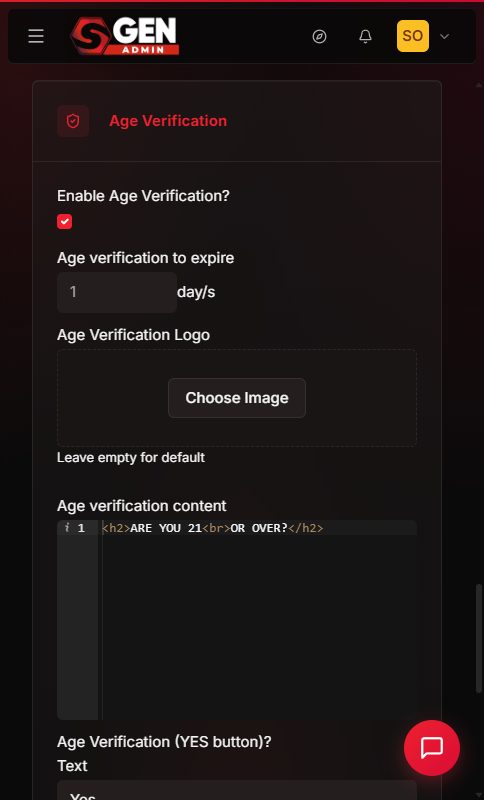
In your admin sidebar, go to Settings → Age verification and confirm the toggle is on. If the gate is disabled, the reset will not produce a visible result.
While you are here, note the expiration setting. A 1-day expiration means your confirmation resets overnight anyway; a 30-day expiration means you will want manual resets more often during testing.
2. Open your site in a fresh browser tab
Open a new tab and visit your homepage. If you previously confirmed the age gate, you will not see it — that is the state you are about to reset.
3. Visit the reset URL
In your browser's address bar, visit:
`` https://yoursite.com/do_actions/remove_age_verification ``
The page will appear blank — that is correct. The site has cleared your saved confirmation in the background.
4. Reload your homepage
Go back to your homepage tab and reload. The age gate should appear again.
If the gate does NOT appear, follow the steps under "What to do if it does not work" below — there is a known issue affecting some browser setups, with a straightforward workaround.
5. Confirm and continue
Click the confirmation button on the gate to dismiss it. Your site now behaves normally and you can repeat the reset cycle as many times as needed.
What success looks like
After a successful reset, on your next visit to your homepage:
- The age verification gate appears, exactly as it would for a first-time visitor.
- The gate uses your site's configured branding, wording, and design.
- Clicking the confirmation button dismisses the gate and reveals your homepage normally.
- Refreshing or navigating to another page does not bring the gate back — the new confirmation is saved until the expiration period passes or you reset again.
- Closing and reopening your browser also does not bring the gate back; the confirmation is cookie-stored, not session-scoped.
What to do if it does not work
If the gate still does not re-appear after visiting the reset URL, you have hit a known issue: the reset URL clears one stored value but in some site setups a second value persists and keeps the gate hidden. Fix it by clearing that second value manually:
- Open your browser's developer tools — press F12 on Windows, or Cmd+Option+I on Mac. In Safari, enable the Develop menu first under Preferences, then choose Develop → Show Web Inspector.
- Go to the Application tab (Chrome/Edge) or the Storage tab (Firefox/Safari).
- In the left sidebar, expand Cookies and click your site's name.
- Find any rows whose name starts with
age_. Right-click each one and choose Delete. - Reload your homepage — the age gate should now appear.
If that still does not work:
- Clear all cookies for your site via your browser's privacy settings (Chrome: Settings → Privacy and security → Clear browsing data → Cookies). This is more aggressive but always works.
- Or open a private/incognito browser window — these share no cookies with your normal browsing and always behave like a brand-new visitor.
If none of these resolve it, contact support with: the browser and version you are using, a screenshot of the cookies listed in the Application tab for your site, whether the gate is enabled in Settings → Age verification, and any custom code or themes you have applied that might affect the gate. Support can usually identify the issue from the cookie list alone.
Examples
Example 1: Previewing a gate design update
You run an age-gated online store. You updated your age gate wording from "Are you 21+?" to "Welcome — please confirm you are 21 or older to continue." You want to see the new wording on your real site, not in the Settings preview.
Steps:
- Save your changes in Settings → Age verification.
- Open your homepage in a new tab. The gate does not show — you confirmed weeks ago.
- Visit the reset URL in the same browser.
- The page goes blank — the expected response.
- Reload your homepage. The gate appears with your new wording.
- Screen-record the experience for your team's review.
The reset takes under thirty seconds and lets you see the gate in its real context. Without it, you would have to wait days for your cookie to expire or work in an incognito window.
Example 2: Adding a visitor-facing reset link in the footer
You want to give visitors on a shared family computer a way to manually clear their confirmation — so a parent who confirmed earlier can ensure the gate appears again for the next person.
Steps:
- Open Site Editor and edit the global footer.
- Add a text link to your site's reset path, labelled "Reset my age verification".
- Save the footer.
- Test the link from your own browser to confirm it works.
- Add a brief mention to your privacy policy explaining what the link does.
Any visitor on a shared computer now has a one-click self-serve reset — no developer tools required.
Example 3: Pre-launch cross-device testing
You are launching a new section with stronger product imagery and want to confirm the age gate is intercepting correctly on all common browsers before going live.
Your checklist:
- Desktop Chrome: visit homepage, confirm gate appears, click confirm, navigate the new section, run the reset URL, reload to confirm the gate re-appears.
- Desktop Safari: same procedure.
- iPhone Safari: same procedure.
- Android Chrome: same procedure.
- For each device, take a screenshot of the gate and the post-confirmation flow for your launch documentation.
The reset URL is the workhorse of this checklist — without it, you would have to wait days for cookies to expire on each device. With it, you can run a full reset-test-confirm cycle in about ten minutes per device.
Example 4: Visitor self-serve on a shared computer
A visitor confirmed they were 21+ last week. They are now sharing their laptop with a younger family member and want the gate to appear again. The visitor does not need admin access:
- Visits the reset URL directly.
- The page goes blank — expected.
- Navigates to the homepage. The age gate appears.
- Hands the laptop over with the gate in front of the next person.
The URL is publicly accessible by design — visitor self-service is built in, with no admin password required.
Example 5: Compliance audit walkthrough
Your store has been asked by its state alcohol licensing board to demonstrate that the age verification gate is functioning. Your compliance reviewer will spend an hour running checks.
Prepare:
- The day before, open Settings → Age verification and confirm the gate is enabled with appropriate wording and a 1-day expiration to keep the test cycle short.
- On the day of the review, join your compliance reviewer on a screen share.
- The reviewer navigates to the homepage. The gate appears (reset it before the call).
- The reviewer clicks the confirmation button, confirms the gate dismisses, and browses the site.
- The reviewer asks: "How does a visitor undo their confirmation?" Paste the reset URL, the page goes blank, the reviewer reloads, and the gate re-appears.
- The reviewer documents this in the audit report — the reset path satisfies the "user can withdraw consent" check.
Example 6: Kiosk setup for a tasting room
You run in-person tasting events and put a tablet at the entrance so visitors can browse your wholesale catalog. Each new visitor needs to see the age gate.
Configure the kiosk:
- Open a browser tab on the tablet and navigate to your site. The gate appears for the first visitor of the day.
- The visitor confirms, browses, and leaves.
- A staff member taps a bookmarked "Reset" tile, which opens the reset URL.
- The page goes blank; the staff member taps the home icon. The gate appears for the next visitor.
- The cycle repeats throughout the day.
Print a small card for staff: "Tap RESET between visitors to keep the gate honest." The reset URL works as a kiosk building block with no custom development required.
Common questions
Will resetting affect other visitors on my site?
No. The reset only clears the saved answer in the browser where the reset URL is opened. Every other visitor's confirmation is unaffected. There is no "reset everyone" button — by design, each visitor manages their own.
How long does the saved answer normally last?
That is controlled by the expiration setting in Settings → Age verification. You can adjust it to whatever makes sense for your site. After that period, the answer expires automatically and the gate re-appears without anyone needing the reset URL.
Can I see how many visitors have confirmed?
Not directly through this feature. Confirmation tracking would be a custom analytics addition. The reset feature itself does not maintain a log.
Is the reset URL safe to share publicly?
Yes. The URL only affects the browser of the person who visits it. It cannot clear someone else's confirmation and has no admin or destructive side effects beyond the single-cookie clear.
What if I do not want visitors to reset their own confirmation?
There is no admin setting to disable the reset URL. If you do not want a visible reset link on your site, do not add one to your footer or content. The URL exists at /do_actions/remove_age_verification, but visitors will not find it unless you advertise it.
What if the gate keeps appearing even after I confirm?
That is the inverse problem. It usually means the same known issue — the saved answer is stored in one place and read from another. The fix is the same: clear cookies whose names start with age_ through your browser's developer tools, then reload.
Can I reset all my visitors at once when I update my gate wording?
Not directly. The closest approach is to lower your expiration setting temporarily — for example, set it to 1 day for a week. Every visitor's saved answer will expire within a day and they will see your new wording naturally.
Does the reset affect performance?
No. The reset URL clears a single cookie and returns nothing. It is one of the lightest pages on your site.
Will the reset URL ever change?
We try to keep URLs stable. The reset path has been at /do_actions/remove_age_verification since the feature shipped. If the path ever changes, we will redirect the old path to the new one and announce the change in release notes.
Can search engines accidentally trigger the reset?
In principle yes — if a crawler visited the reset URL it would clear its own cookie store, which has no real-world impact on your visitors. The reset has no side effect that propagates to anyone else.
Does the reset clear a visitor's shopping cart?
No. The reset only touches the age-verification confirmation cookie. Cart contents, checkout state, login state, and all other saved data are untouched.
Next steps
- Settings → Age verification — configure how the gate looks and how long the saved answer lasts.
- Site Editor → Footer — add a "Reset my age verification" link if you want visitors to self-serve a reset.
- Age verification setup guide — full configuration reference for the gate itself.
- Customizing the age gate — visual styling options for the gate screen.
- Cookie policy guidance — how to document the age-verification cookie in your privacy policy.
- Adding links to your footer — step-by-step for adding the reset link to your site footer.